HEIC to JPG Converter: The Fastest Way to Open iPhone Photos Online
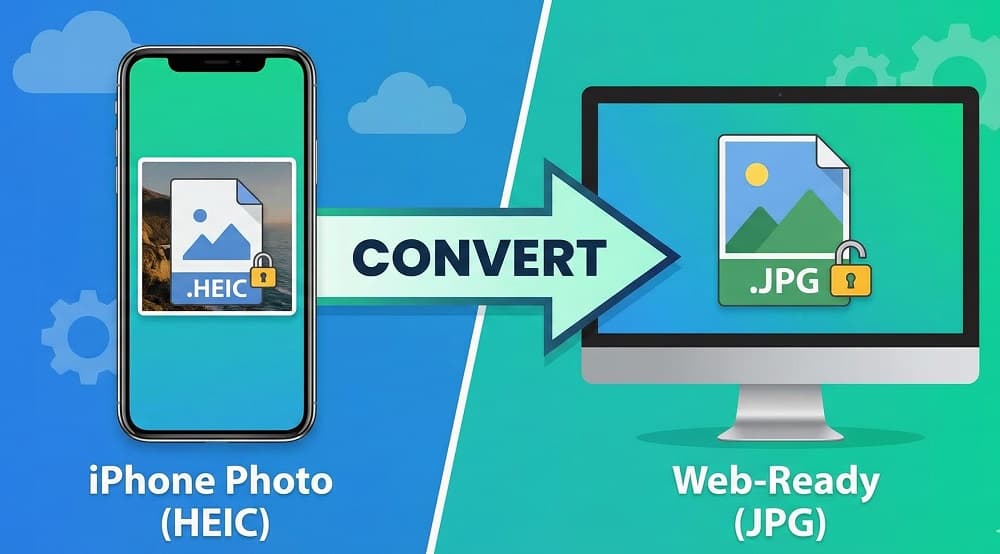
You just transferred photos from your iPhone to your Windows PC, intending to edit them or upload them to a website. But when you double-click the file, instead of your photo, you see an error message or a blank icon. The file extension reads .HEIC, and your computer has no idea what to do with it.
This is the "iPhone Incompatibility" headache.
While Apple’s High Efficiency Image Container (HEIC) saves space on your phone, it creates a massive roadblock for sharing and compatibility. Windows, older browsers, and many social platforms simply don’t speak the language of HEIC natively.
The good news? You don’t need to install paid plugins from the Microsoft Store or download sketchy software. You can fix this instantly.
Here is the fastest, safest way to convert HEIC to JPG online, keeping your private photos secure and your hard drive clean.
What is an HEIC File and Why Can't I Open It?
If you are wondering why your photos aren't just standard JPGs anymore, you can blame (or thank) iOS 11. In 2017, Apple switched its default camera format to HEIC.
Why did they do this?
- Space Savings: HEIC uses modern compression methods to make files about 50% smaller than JPGs without losing quality.
- Better Tech: Unlike JPGs, which are limited to 8-bit color, HEIC supports 16-bit color, meaning it captures significantly more vibrant colors and shadows.
The Problem:
The rest of the world hasn't caught up. Windows 10 and 11 do not decode these files natively by default. If you try to open one, Windows often asks you to "Download codecs at the Microsoft Store"—which sometimes requires a fee.
How to Convert HEIC to JPG Online (Free & No Install)
The fastest way to solve this is by using a browser-based converter. This method works on any device—iPhone, Mac, Windows, or Android—without installing a single app.
Follow these steps to convert your images instantly:
- Go to the Converter: Navigate to OnlineToolsFree.com in your browser.
- Upload Your Files: Click the "Upload" button or simply drag and drop your HEIC files directly from your folder onto the page. You can select multiple files at once for batch processing.
- Wait for Conversion: The tool will automatically process the images. Because the conversion happens in the cloud, it uses our server's power, not your computer's CPU.
- Download: Once finished, click "Download All" to save your new, universally compatible JPG files.
Pro Tip: Using an online tool is safer than installing free desktop software, which often comes bundled with bloatware or ads.
HEIC vs. JPG: Which Format is Better for You?
Should you convert all your photos, or keep them as HEIC? The answer depends entirely on how you plan to use them. Here is a breakdown of how the two formats compare:
- Compatibility: This is the biggest difference. HEIC has low compatibility outside of the Apple ecosystem; you will struggle to open these files on Windows or older Androids. JPG, on the other hand, is universal—it works on every device, operating system, and piece of software created in the last 30 years.
- File Size: HEIC wins this category easily. It uses advanced compression to keep files small, saving significant space on your iPhone. JPG files are larger and will eat up your storage faster if you are keeping thousands of them.
- Editability: HEIC is technically superior for editing because it supports non-destructive edits and higher color depth (16-bit). JPG is limited to 8-bit color and loses quality every time you edit and re-save the file.
- Web Use: If you are uploading to a website or blog, JPG is excellent and the standard choice. HEIC is poor for the web because most browsers (like Chrome or Edge) cannot display the image at all.
The Verdict: Keep HEIC on your iPhone to save storage space. But the moment you need to share a photo, send an email, or upload it to a website, convert it to JPG to ensure the recipient can actually see it.
Troubleshooting: Opening HEIC Files on Windows and Android
If you deal with these files constantly, you might face specific errors depending on your device.
On Windows 10 & 11
Windows might tell you " The HEVC Video Extension is required to display this file."
- The Official Fix: You can buy the extension from the Microsoft Store ($0.99).
- The Better Fix: Save your money. Use OnlineToolsFree.com to convert the file to JPG for free. It’s faster than navigating the store and doesn't clutter your system with extensions that may break after updates.
On Android
While Android 10 and later support HEIC, older Android devices will see these files as "unsupported." If you are sending photos to friends with older phones, always send JPGs to ensure they don't get a blank screen.
Frequently Asked Questions (FAQ)
How do I convert HEIC to JPG for free?
To convert for free, avoid paid software and use OnlineToolsFree.com. Upload your HEIC images, let the secure tool process them, and download the JPGs instantly. There are no hidden fees or watermarks.
Why are my iPhone photos HEIC instead of JPG?
Apple sets HEIC as the default to save storage space on your device. HEIC files are half the size of JPGs. If you prefer JPGs, you can change this in your iPhone settings under Camera > Formats > Most Compatible.
Can I batch convert HEIC to JPG online?
Yes, you can. OnlineToolsFree supports bulk uploads, allowing you to select dozens of photos at once. The tool converts them simultaneously and lets you download them individually or as a ZIP file.
Does converting HEIC to JPG lose quality?
Technically, yes, because JPG is a compressed format. However, high-quality converters like ours minimize this loss so the difference is invisible to the human eye. You get the same visual fidelity with maximum compatibility.
Conclusion: Start Converting Your Photos Instantly
Don't let a file extension stop your workflow. Whether you are a designer, a marketer, or just trying to print family photos, you need a format that works everywhere.
Stop wrestling with incompatible files. Visit OnlineToolsFree.com now to turn your locked HEIC files into open, usable JPGs in seconds.
Thanks for reading! Share this post if you found it helpful.